How to Turn a Phone Product Photo into a Studio Image
Prepare a stronger phone reference, write a bounded studio-image prompt, protect product details, and review lighting, edges, labels, and shadows.
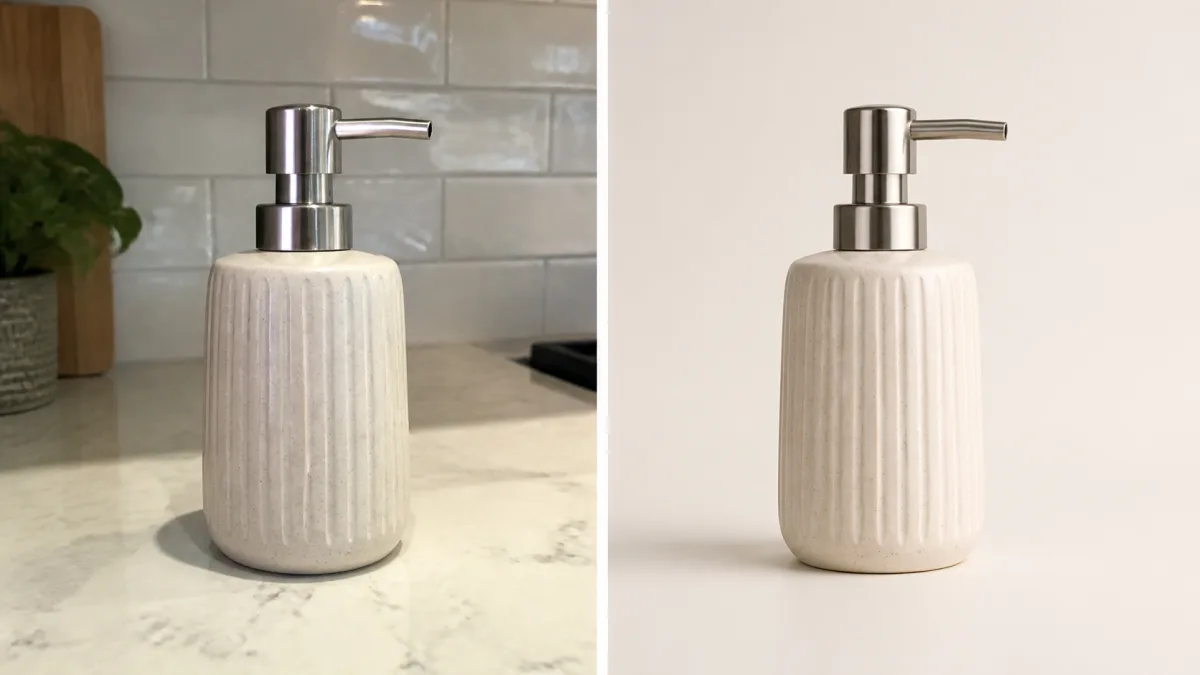
To turn a phone product photo into a studio image, improve the source before asking AI to improve the scene. Clean the lens, use the main camera, place the item in even indirect light, keep the full outline visible, and avoid digital zoom or a dramatic wide-angle view. Then write a bounded prompt that locks product geometry, color, material, label, and distinctive details while changing only the background, light, and shadow. The result may still alter fine packaging or reflective surfaces, so compare it at full resolution with the physical item. When exact identity matters, retain or composite the original product pixels rather than relying on regeneration alone.
Capture a reference that minimizes invention
A clean reference gives the system fewer missing details to fill. Wipe the phone lens, use a stable support, and photograph near a window with the direct sun diffused by a curtain. Place the product on a plain surface that contrasts with its edges.
Use the phone's main lens if practical. Very wide lenses can bend straight packaging lines, while digital zoom removes detail. Step back slightly and crop later. Keep the cap, base, handles, cords, or accessories fully inside the frame.
Make a quick source-photo checklist
Before uploading, confirm:
- Focus is sharp on the product and label.
- White balance is reasonably neutral.
- No hand or prop covers identifying details.
- Highlights do not erase glossy text or edges.
- The complete silhouette and base are visible.
- The camera angle shows enough depth without extreme perspective.
- Dust and accidental clutter have been removed physically where possible.
Study clean compositions in Showcases, but do not try to force your product into an angle the phone photo did not capture.
Record the product identity separately
Write down the shape, proportions, true color, material, finish, cap, seams, hardware, label boundary, logo, wording, and any intentional texture. This is the product-lock section of the prompt.
Do not call an item simply "a premium bottle" or "a stylish bag." Those phrases invite redesign. Describe the actual item first, then permit the environmental changes you want.
Choose a believable studio setup
A simple studio look is easier to control than a complex campaign. Start with a seamless paper background, one broad key light, gentle fill, and a natural contact shadow. Choose warm white, light gray, or another restrained tone that separates the silhouette.
The background, surface, and light should form one system. A white sweep with a hard theatrical spotlight or a marble surface with no reflection may look inconsistent. Name the surface and the way the product touches it.
Correct phone perspective cautiously
If vertical package edges converge because the phone was tilted, ask for subtle perspective correction while preserving dimensions and label placement. Major angle changes require the generator to invent unseen sides. A second source photo is safer when you need another view.
Keep the product scale similar to the source on the first pass. After identity is stable, test a different crop rather than changing perspective, background, and lighting at once.
Copy-ready phone-to-studio prompt
Use the uploaded phone photo as the exact product source. Preserve the complete product geometry, proportions, true color, material, finish, texture, cap or hardware, label shape, logo, text, and all distinctive details. Retain the original camera angle, making only a subtle perspective correction to straighten [specific edges] without changing dimensions. Remove only the existing background and incidental surface clutter. Place the unchanged product on [surface] against a seamless [background color] studio sweep in [aspect ratio]. Use one broad soft key light from [direction], gentle neutral fill, controlled material-appropriate highlights, a compact contact shadow, and a soft cast shadow to [direction]. Keep clean margins and the full outline visible. Do not redesign, rotate, recolor, smooth texture, invent text, add props, duplicate the item, hide the label, or add a watermark.Refine the brief with the AI image generator, then bring the complete instruction into Create.
Common failures and focused fixes
Soft product edges often begin with motion blur or missed focus in the source. Recapture when possible instead of demanding artificial sharpness. A warped label can result from perspective change; return to the original angle and preserve the label area. If the product floats, request a compact contact shadow directly beneath every touching point.
Phone color processing can make products too warm or saturated. Compare with the physical item, request neutral lighting, and avoid strong color grading. If glass or metal looks plastic, describe the actual finish and one plausible softbox reflection rather than asking for more gloss.
Build additional images from the approved base
Once a clean studio image is approved, use it as the visual anchor for a square product card, a wide banner, or a restrained lifestyle concept. Keep the identity block and core light direction consistent. Change one variable per version.
Do not treat the approved base as proof that all later generations remain accurate. Each image needs its own comparison with the source.
Pre-publish studio image checklist
- Product shape, proportions, color, material, finish, and texture match the physical item.
- Label, logo, wording, cap, hardware, seams, and edges remain accurate.
- Perspective correction is subtle and has not changed dimensions.
- The product touches the surface with a plausible contact shadow.
- Highlights and reflections fit the real material and studio setup.
- No dust removal has erased an intentional detail or handmade texture.
- The final crop fits its product card, banner, or social placement.
- Full-resolution comparison found no invented letters, duplicated parts, or haloed edges.
Take one careful phone photo before trying to rescue a weak one. Then adapt the bounded prompt, open Create, and approve product identity before exploring more elaborate backgrounds.
Related guides
Browse all ai product photography guidesAI Product Lifestyle Photo Prompts for Believable Scenes
Build lifestyle product prompts around a real customer moment, accurate scale, product-lock details, coherent light, restrained props, and review.
A Practical Seedream Product Photography Prompt Guide
Structure Seedream product photography prompts around product facts, scene choices, light, composition, constraints, and a careful review process.
How to Fix Product Photo Shadows and Reflections with AI
Diagnose floating objects, double shadows, harsh glare, and fake reflections, then write bounded AI edit prompts that protect product identity.
Last updated .