How to Turn a Square Image Into Landscape With AI
Convert a square image into a balanced landscape composition by preserving the focal subject, rebuilding visual flow, and managing newly revealed space.
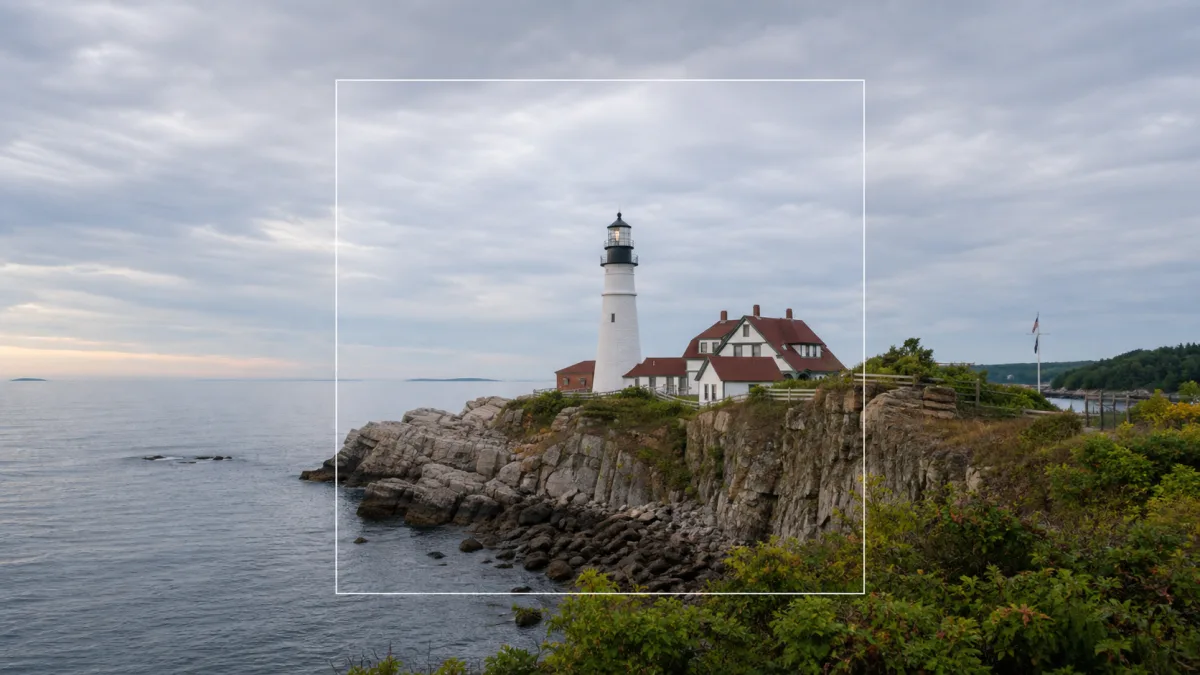
To turn square image into landscape with AI, decide whether the wider result should merely reveal more environment or actively rebalance the composition. Preserve the original focal subject, identity, scale, pose, camera height, light, and central geometry. Then choose a target ratio and describe what logically continues beyond the left and right edges. Extend one side more than the other when the subject’s gaze, movement, or placement needs directional space. Keep new objects secondary, reconnect lines and horizons, and evaluate the complete visual flow rather than only checking for seamless pixels. Unlike a website hero extension, this task is primarily about making a convincing standalone landscape composition, not reserving a text column.
Choose the landscape ratio for the destination
“Landscape” covers many frames. A modest 4:3 conversion adds less invented content than 16:9, while a cinematic 2.39:1 frame may require substantial new environment. Select the ratio based on where the image will appear: presentation, editorial feature, video thumbnail, digital frame, or social post.
Record the exact target before editing. Repeatedly widening an image in small, unplanned steps can create drifting perspective and duplicated detail. If several placements are needed, begin with the most important ratio and derive alternate versions from a stable approved composition.
Decide whether to center, lead, or counterbalance
A square image often centers the subject. That may remain effective in a wide symmetrical scene, but landscape space also supports directional composition. A person looking right usually benefits from more room on the right. A moving vehicle needs space ahead of its direction. An object placed on one third can be balanced by light, color, or subtle environment on the other.
Choose one strategy:
- Centered expansion for symmetry and calm
- Lead-room expansion in the direction of gaze or motion
- Off-center placement with a quiet counterweight
- Environmental reveal that adds useful story context
Do not add a second major subject merely to fill space. The original focal hierarchy should remain clear.
Preserve the original frame as the visual anchor
Tell the model not to scale down, stretch, or reinterpret the source. Protect the subject, crop relationship, camera angle, lighting, color, grain, and depth of field. If the original includes a horizon, table edge, road, wall seam, or architectural line, state that it must continue with matching perspective.
The extension should feel like the camera captured a wider field of view from the same position. It should not resemble two different photographs joined around the square source.
Use a composition-aware prompt
Describe both the protected center and the purpose of the new sides. Keep added detail subordinate.
Convert the square source into a 16:9 landscape composition. Preserve the
original person, face, pose, scale, clothing, camera height, lighting, color,
and central background exactly. Extend the park naturally on both sides, with
slightly more open space in the direction of the person’s gaze. Continue the
path, trees, atmospheric depth, and soft afternoon light with matching
perspective. Add no new people, signs, text, or competing focal subject.
For product images, protect the product size and viewing angle, then extend the surface and environment without inventing additional copies.
Reconnect geometry across the new frame
Landscape conversion exposes discontinuities that were outside the square crop. Follow straight lines through the boundary. Roads, tabletops, horizons, shelves, waves, and shadows need consistent angle and spacing. In natural scenes, continue depth through scale: nearby leaves appear larger and sharper than distant ones.
If a hard seam remains, correct the boundary locally if that option exists. Do not open the entire subject to regeneration just to repair a section of floorboard or sky.
Why the wide result feels empty or overfilled
An empty result often repeats a plain texture without adding visual flow. An overfilled result invents people, buildings, trees, or objects on both sides until the original subject loses importance. Both come from a prompt that specifies width but not composition.
Fix emptiness with subtle directional structure—a path, light gradient, shadow, or depth layer—rather than a new focal point. Fix clutter by removing named objects and asking for restrained continuation. If the subject appears too small, restore its original scale instead of cropping the new edges until the image becomes square again.
Evaluate the image as a standalone landscape
First compare the protected center with the source. Then view the whole frame at the intended display size. Check whether the eye moves naturally toward the subject, whether the new sides have balanced visual weight, and whether there is enough breathing space ahead of gaze or motion.
Inspect boundaries at full resolution for repeated foliage, mismatched grain, broken architecture, doubled objects, and changes in exposure. Finally, crop a little from each side to ensure the composition remains usable when platforms trim the edges.
Landscape-conversion checklist
Before exporting, confirm:
- The target ratio matches the intended placement.
- The original subject, scale, pose, and identity are preserved.
- New space supports gaze, motion, symmetry, or context.
- Horizons and structural lines continue accurately.
- Added objects remain secondary and plausible.
- Light, depth of field, texture, and grain are continuous.
- The image works as a complete composition without text.
- Slight edge cropping does not destroy the focal balance.
Build a wider composition from one strong frame
Browse the AI image showcases for examples of balanced wide framing. Use the AI image generator to define the target ratio and directional space, then open the Create workspace with the square source. Convert square image to widescreen with AI by designing what the wider frame should communicate, not by treating both new sides as blank areas that merely need pixels.
Related guides
Browse all ai reference editing guidesAn AI Inpainting Mask Guide for Clean Local Edits
Plan cleaner local AI edits by choosing mask boundaries, context margins, feathering, protected regions, staged passes, and full-resolution checks.
How to Write Better Negative Prompts for Realistic AI Images
Build concise negative prompts from visible risks while keeping positive direction clear, specific, compatible, and useful for realistic image creation.
How to Fix Unrealistic Reflections in AI Images
Correct mirrors, glass, water, metal, and glossy surfaces by tracing reflected geometry, viewpoint, light, roughness, occlusion, and material behavior.
Last updated .