
An AI Inpainting Mask Guide for Clean Local Edits
Plan cleaner local AI edits by choosing mask boundaries, context margins, feathering, protected regions, staged passes, and full-resolution checks.
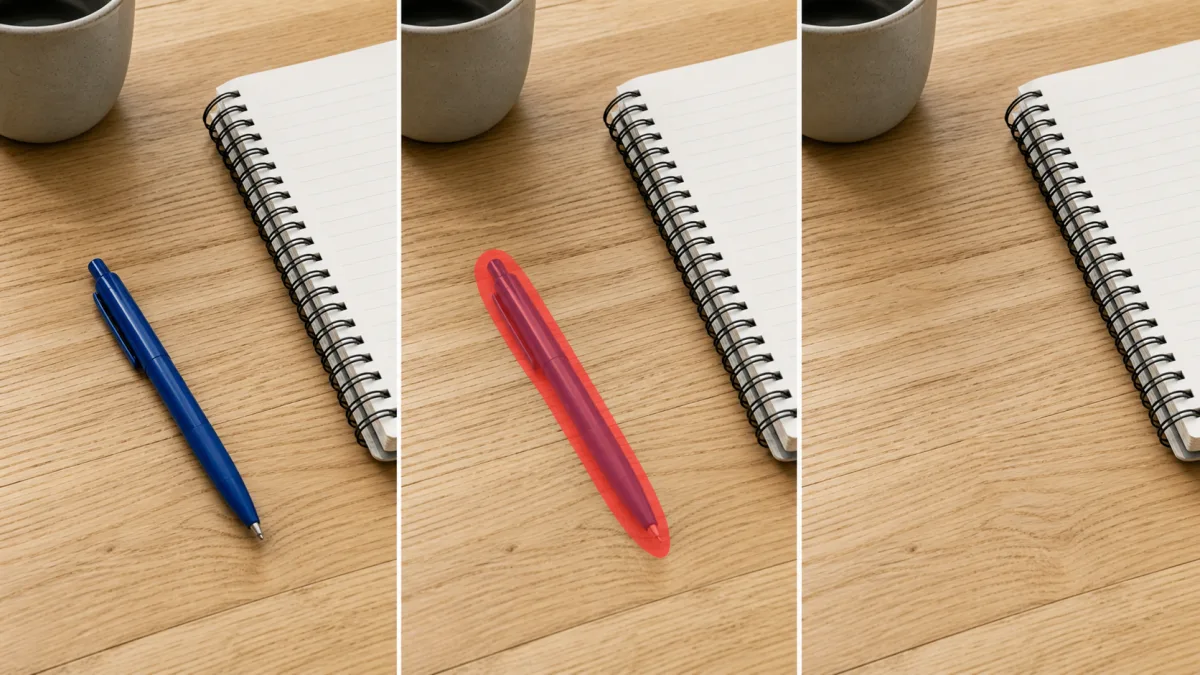
An effective AI inpainting mask defines both the problem and the context needed to solve it. If your editor provides masking or selection tools, cover the complete unwanted area, including connected shadows or reflections, then add a modest border where new pixels must blend with the original. Protect faces, hands, logos, straight structural lines, and any region that already works. Use softer transitions for hair, smoke, fabric, and depth-of-field boundaries, and tighter edges for hard products or architecture. Pair the mask with a narrow preserve/change prompt, edit in small stages, and inspect the seam at full resolution. A clean local edit depends more on boundary placement and context than on making the selection either extremely precise or unnecessarily large.
Decide whether the task is truly local
Masking is useful when most of the image is correct and one region needs removal, replacement, repair, or extension. Examples include a damaged hand, unwanted object, broken label area, clothing patch, background edge, or reflection. It is less suitable when the request changes camera angle, complete lighting, body pose, or the full environment.
Ask three questions:
- Can the desired change be contained within a clear region?
- Does the surrounding image provide enough evidence for reconstruction?
- Can protected elements remain physically consistent after the change?
If the answer is no, a new generation or stronger reference may be more honest than an oversized mask that exposes the whole image.
Include the full visual footprint
Mask what must disappear or change, not only the obvious center. An unwanted object may include shadow, reflection, cord, or color spill. A damaged hand repair may need part of the wrist and sleeve so anatomy can reconnect. A background change around hair needs the gaps between strands as well as the outer silhouette.
Trace the region at full size. Look for detached fragments and effects that belong to the target. Leaving them outside the mask can create ghost evidence after the main object is gone.
Add the right amount of context
A mask boundary exactly on the failed pixels can trap old edge color and prevent a natural join. Extend slightly into healthy surrounding material so the editor can match texture, light, and geometry. The amount depends on the surface.
Use a modest context margin for:
- Wrist and sleeve around a hand correction
- Wall and floor around an object removal
- Hair and background around a portrait edge
- Label and package material around a text cleanup
- Adjacent tiles or boards around a pattern repair
Do not include a face, logo, or major object simply because it is nearby. More context is not always better.
Choose hard or soft boundaries by material
Architecture, product edges, signs, and geometric surfaces often need controlled, relatively tight boundaries. Hair, fur, smoke, clouds, reflections, fabric, and blurred backgrounds need a softer transition. If feathering is available, apply it based on the source edge rather than one default radius.
Excessive feathering can soften a product contour or create a glowing halo. A perfectly hard boundary around hair can leave a cutout. Zoom in and follow the actual edge behavior already present in the image.
Pair the mask with a focused prompt
The selection says where editing may occur; the prompt says what should replace it and what remains protected.
Inside the selected area, replace the distorted right hand with a natural relaxed
hand resting on the chair arm. Match the existing wrist position, sleeve cuff,
skin tone, finger scale, camera perspective, soft light from camera left, and
depth of field. Preserve the face, body pose, chair, clothing, crop, and every
unselected region. Do not add jewelry, change the gesture, or alter the chair.
Avoid global style language in a local repair. It can encourage the selected patch to look sharper, smoother, or more colorful than its surroundings.
Use several small passes for complex boundaries
A region involving hand, sleeve, chair, and background may be easier to solve in stages. Repair structure first, then correct a small seam or shadow. For object removal, reconstruct the large background area before fixing one line or texture boundary.
Keep the strongest version after each stage. Repeatedly repainting the same wide area can introduce drift. If a later pass fails, return to the last clean intermediate rather than continuing from a compromised result.
Why masked edits leave halos, seams, or patches
Halos often come from old edge pixels left outside the mask or excessive feathering across a high-contrast boundary. Seams appear when the context margin is too small to continue a pattern or when the generated patch has different sharpness, noise, light, or color. Large bland patches occur when the selection removes useful structural cues.
Adjust the boundary according to the failure. Expand slightly to include contaminated edges, tighten it to protect stable structure, or add a line and perspective description. Match material, light, grain, and depth. Do not regenerate the entire frame to fix a narrow seam.
Inspect both the patch and the whole image
At full size, check edge color, texture direction, repeated detail, line continuity, anatomy, and contact shadows. Toggle between versions to detect movement just outside the intended area. Then return to normal size and confirm the repair does not attract attention through unusual sharpness, brightness, or contrast.
Review the factual content too. A repaired package may have a plausible surface but altered label; a corrected hand may change a ring; a removed object may leave an impossible reflection.
Inpainting-mask checklist
Before accepting the edit, confirm:
- The task is appropriately local.
- The mask includes the target’s complete footprint.
- Context is sufficient but does not expose protected regions.
- Boundary softness matches the material and focus.
- The prompt names both replacement and preservation.
- Structure was repaired before surface finishing.
- Seams, halos, patterns, noise, and light match.
- Faces, hands, logos, text, and composition remain accurate.
Make the smallest edit that solves the problem
Examine local-detail quality in the AI image showcases, then use the AI image generator to write a precise preserve/change instruction. If masking is available in your chosen workflow, open the Create workspace and select only the region that needs new information. Clean inpainting mask edges come from respecting materials, context, and protected details—not from turning a local correction into a complete regeneration.
Related guides
Browse all ai reference editing guidesHow to Write Better Negative Prompts for Realistic AI Images
Build concise negative prompts from visible risks while keeping positive direction clear, specific, compatible, and useful for realistic image creation.
How to Fix Unrealistic Reflections in AI Images
Correct mirrors, glass, water, metal, and glossy surfaces by tracing reflected geometry, viewpoint, light, roughness, occlusion, and material behavior.
How to Preserve the Camera Angle in AI Image Edits
Protect viewpoint and perspective during AI editing by defining camera height, orientation, horizon, vanishing lines, subject scale, and lens behavior.
Last updated .