
How to Remove an Object With AI Without Changing the Image
Remove a distracting object while preserving composition, subjects, perspective, texture, shadows, and the visual relationships in the original image.
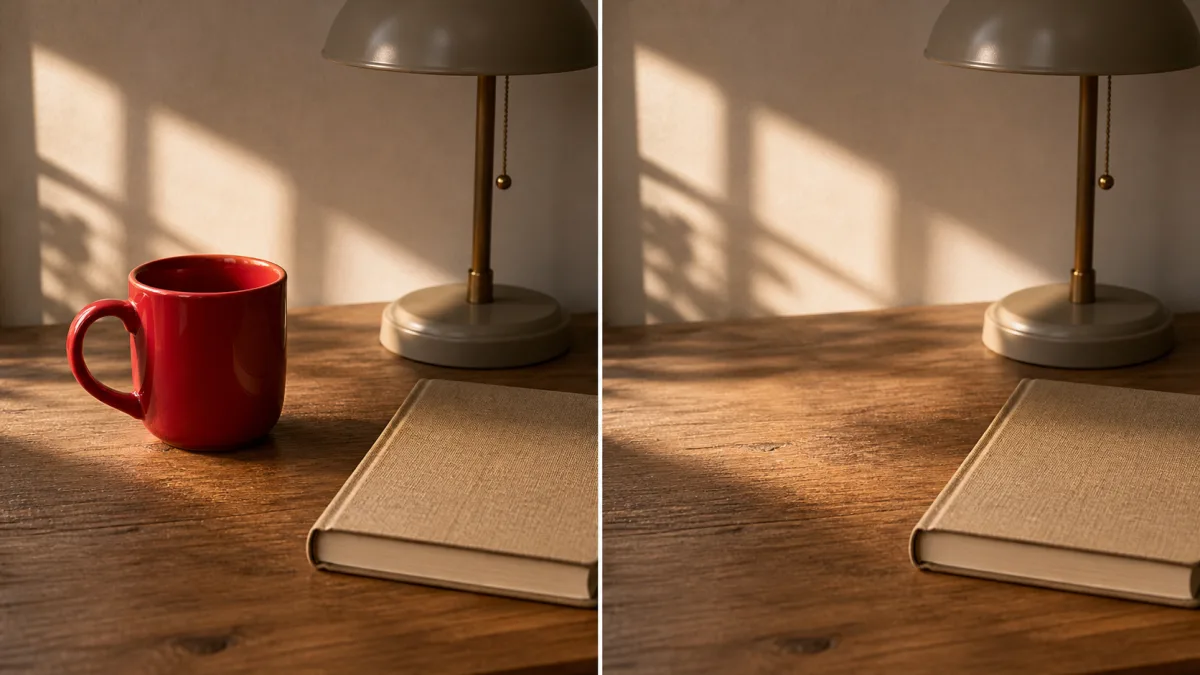
To remove an object with AI without changing the image, define the task as reconstruction of one small area. If your goal is to remove object with AI without changing image structure, preserve the complete composition, crop, subjects, camera angle, lighting, colors, depth of field, and every object outside the removal zone. Ask the editor to replace the unwanted object with the background that would logically continue behind it—wall, pavement, fabric, foliage, water, or sky—rather than to “improve” the scene. If a mask or selection is available, cover the object plus its shadow and reflection, with a modest context border. Inspect repeated textures and nearby edges at full size, because plausible-looking fills often contain broken lines or duplicated details.
Identify the object’s full visual footprint
An object occupies more than its silhouette. It may cast a shadow, create a reflection, block part of a pattern, bend grass, or change light on a nearby surface. Removing only the central object can leave evidence behind, making the image feel edited even when viewers cannot name the problem.
Trace the full footprint before you begin:
- Main object and any detached parts
- Cast shadow and contact shadow
- Reflection in glass, water, metal, or a polished floor
- Occluded lines, textures, or objects behind it
- Color spill on nearby surfaces
- Motion blur, dust, or footprints connected to it
Decide which of these should be reconstructed and which genuinely belongs to the remaining scene.
Describe what should continue behind the object
“Remove the chair” tells the system what to delete but not what to build. State the expected continuation: uninterrupted floorboards aligned with the existing perspective, a plain plaster wall with matching texture, or soft grass following the surrounding depth of field.
Use nearby evidence rather than inventing a new scene. If a fence line enters the covered area from the left and exits on the right, the fill should reconnect that line. If the background is uncertain, choose the simplest physically plausible continuation instead of adding decorative objects.
Use a narrow reconstruction prompt
Keep the prompt literal and local. Do not include global style or enhancement language.
Remove only the small black floor lamp beside the sofa, including its cord,
contact shadow, and reflection on the wooden floor. Reconstruct the warm plaster
wall and horizontal oak floorboards behind it, matching the existing perspective,
grain, color, light direction, and depth of field. Preserve the sofa, cushions,
window, crop, camera angle, and every other part of the image unchanged. Add no
new furniture or decoration.
For a person or branded object, use neutral identification based on position and appearance. Avoid instructions that could be interpreted as removing similar items elsewhere in the frame.
Build a mask with enough context if available
If local selection is available, cover the complete footprint and extend slightly into the surrounding background. This gives the model information for joining texture and light. A boundary placed exactly against the object can leave a dark fringe or old antialiasing. A selection that is too large, however, may redraw nearby subjects or alter the composition.
Use separate edits for disconnected evidence when appropriate. Removing a reflection on a distant glass panel may be cleaner as a second local pass than one enormous selection connecting it to the object.
Preserve lines, patterns, and depth cues
Straight architectural lines make object removal easy to judge and hard to fake. Check shelves, floorboards, tile grout, window frames, horizons, and typography. They should pass through the reconstructed region with the same spacing and vanishing direction. Repeating fabric, brick, or foliage should continue without obvious cloning.
Depth matters as well. A reconstructed background behind a foreground subject should share the correct blur and grain. An unnaturally sharp patch can attract attention even when its content is accurate.
Why removal edits redesign the composition
The scene often changes because the prompt includes terms such as “clean up,” “make minimal,” or “improve the composition.” Those requests authorize global redesign. A large removal area can also encourage the model to add a replacement focal point. When an object overlaps a person or important structure, the hidden information may be too ambiguous to reconstruct confidently.
Correct the problem by naming every protected element, reducing the editable region, and specifying a simple continuation with no new objects. If the removed item hides a large part of a face, logo, or product, use another reference if one is available. Do not claim the model can recover factual detail that the source never contained.
Compare the edit at multiple zoom levels
At full size, inspect boundary halos, texture seams, broken lines, repeated leaves, doubled shadows, and suspicious smooth patches. Toggle between source and result to ensure nearby objects have not shifted. At normal viewing size, check visual balance. Removing a large object can create empty space that changes the composition even when all other pixels remain stable.
If the new empty area feels awkward, decide whether that is an honest consequence of removal. Do not automatically fill it with another object. Cropping may be a more controlled design decision than asking the model to invent a new focal point.
Object-removal checklist
Before exporting, verify:
- The correct object and all connected evidence are gone.
- No unrelated object, person, or crop changed.
- Background lines reconnect with accurate perspective.
- Texture, noise, blur, and color match surrounding areas.
- Shadows and reflections remain physically consistent.
- The fill contains no duplicated or invented object.
- The overall visual balance still supports the image’s purpose.
Remove one distraction with a controlled edit
Study clean compositions in the AI image showcases, then use the AI image generator to plan what must be reconstructed behind the unwanted element. Open the Create workspace with the original file, describe one precise removal, and accept the result only when the AI object-removal workflow preserves background details as carefully as it removes the distraction.
Related guides
Browse all ai reference editing guidesAn AI Inpainting Mask Guide for Clean Local Edits
Plan cleaner local AI edits by choosing mask boundaries, context margins, feathering, protected regions, staged passes, and full-resolution checks.
How to Write Better Negative Prompts for Realistic AI Images
Build concise negative prompts from visible risks while keeping positive direction clear, specific, compatible, and useful for realistic image creation.
How to Fix Unrealistic Reflections in AI Images
Correct mirrors, glass, water, metal, and glossy surfaces by tracing reflected geometry, viewpoint, light, roughness, occlusion, and material behavior.
Last updated .