How to Extend an Image for a Website Banner With AI
Expand an image into a usable website hero with intentional negative space, responsive crops, stable subject scale, clean edges, and room for interface text.
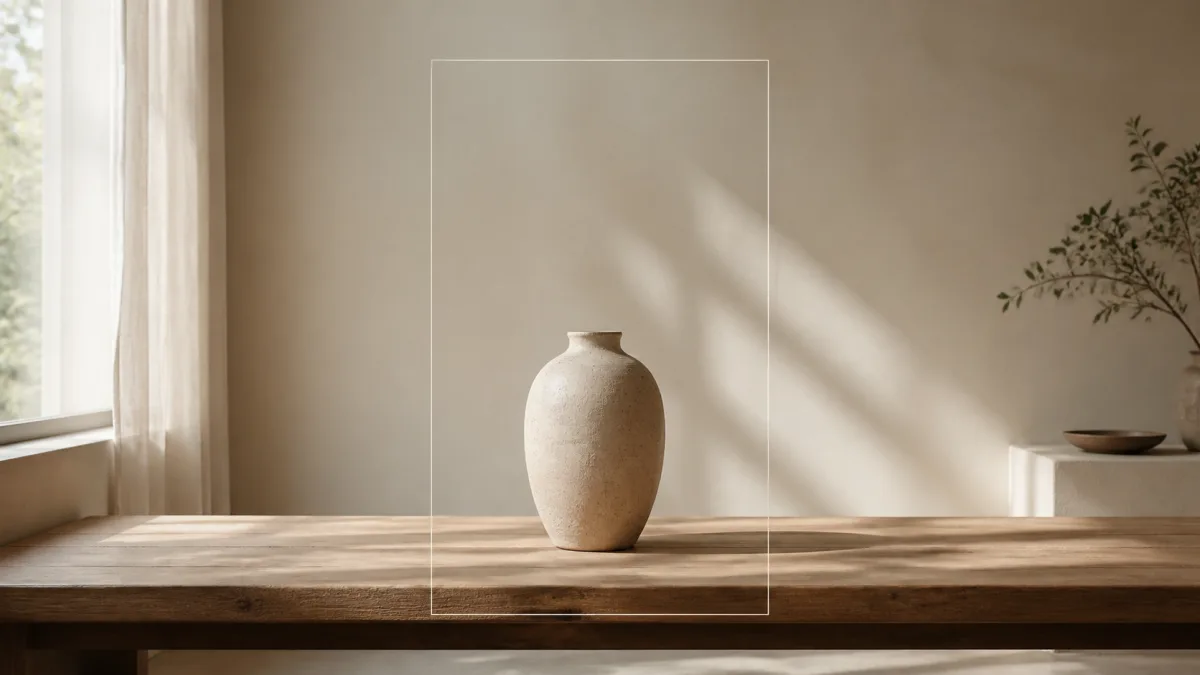
To extend an image for a website banner, begin with the final layout rather than simply asking AI to make the canvas wider. Decide where the headline, supporting copy, and primary button will sit; protect the original subject, scale, crop position, camera angle, and light; then extend only the side that needs usable negative space. Describe the continuation in simple structural terms such as wall, sky, desk, or soft landscape, and ask for restrained detail behind text. Generate enough width for desktop plus safe alternate crops for tablet and mobile. Review seams, repeated textures, horizons, and responsive cropping before adding real typography in the website rather than baking essential copy into the image.
Plan the hero layout before expanding pixels
A website hero is an interface, not just a panorama. Sketch the content zones first. Determine whether the subject should sit on the left or right, where the headline begins, how wide the copy column will be, and what must remain visible when the viewport narrows. A typical design needs a quiet area behind text and a stronger visual area around the subject.
Record the intended placements:
- Subject anchor and safe distance from the edge
- Headline and paragraph column
- Primary call-to-action button
- Header navigation overlap area
- Desktop, tablet, and mobile crop boundaries
- Focal point that must never be cropped
This plan tells you which side to extend and how much visual activity the new area can support.
Preserve subject scale and camera geometry
Outpainting can quietly resize, duplicate, or move the subject when the prompt describes a completely new wide scene. State that the original image remains fixed in position and scale. Preserve its lens perspective, horizon, depth of field, light direction, and color grade.
If the source is a close portrait, do not ask the extension to reveal an entire room from an impossible angle. Continue the background at the same depth. If the source shows a tabletop at eye level, keep the surface lines aligned rather than inventing a top-down workspace.
Ask for designed negative space
Negative space is not an empty white rectangle. It is a visually quiet part of the same scene. Extend low-contrast surfaces, soft sky, subtle wall texture, defocused environment, or a broad tonal gradient. Keep strong edges, faces, signs, and small high-contrast objects away from the text area.
Keep the original subject, position, scale, expression, camera angle, lighting,
and color grade unchanged. Extend the canvas to the left into a wide website
hero banner. Continue the existing warm studio wall and soft floor transition
with realistic perspective and very restrained texture. Create calm negative
space on the left for a headline and button. Add no text, people, logos,
furniture, or competing focal points. Preserve the original image boundary
without a visible seam.
Request “no text” because website copy should remain accessible, responsive, editable, and sharp in HTML.
Extend in the direction that supports reading
The best side depends on the source and language direction. For an English interface, a headline often begins on the left, so a right-side subject with left-side negative space is useful. That is not a rule. A subject’s gaze, gesture, or movement should lead into the content rather than away from it.
Extend one side first. Symmetrical expansion can dilute the visual hierarchy and gives the model twice as much new territory to invent. If both sides are required for responsive variants, create and review them as separate layout decisions.
Design for multiple aspect ratios
Desktop banners are wide, but mobile heroes may be nearly square or vertical. One extremely wide file cannot solve every layout. Identify a central safe zone that survives common crops, then export intentional variants when the subject or text relationship changes significantly.
For desktop, preserve enough breathing room for the copy column. For tablet, check that subject and copy do not collide. For mobile, consider stacking the image and text rather than forcing the entire panorama into a narrow screen. The purpose of an AI image extender for website hero use is flexible composition, not one oversized file used everywhere.
Why an extended banner looks repetitive or empty
Repeating windows, clouds, tiles, leaves, or furniture reveal synthetic expansion. The opposite failure is a perfectly smooth area that no longer matches the source texture. Seams also appear when exposure, grain, or perspective changes at the original boundary.
Fix these issues by simplifying the continuation, naming its perspective, and limiting decorative elements. If one local pattern repeats, correct that region if selection tools are available rather than regenerating the subject. Add subtle variation through light and texture, not through new focal objects. Empty space is successful when it improves legibility and focus.
Test the image inside the real interface
Do not approve the banner in an image viewer alone. Place it behind the actual site header, headline, paragraph, and button. Test light and dark text against the quiet area and preserve sufficient contrast. Resize the viewport to see which details move behind navigation or disappear at common breakpoints.
Check image loading as well. Export appropriate dimensions and modern formats without destroying fine gradients. Set explicit dimensions or aspect ratios in the layout to reduce page movement while the hero loads.
Website-banner checklist
Confirm that:
- Subject position, scale, identity, and lighting remain unchanged.
- The extension follows the original horizon and perspective.
- Text has calm, high-contrast negative space.
- No fake words, logos, or buttons are baked into the image.
- Repeated textures and seams are absent at full size.
- Desktop, tablet, and mobile crops preserve the focal point.
- The final file is appropriately sized and compressed.
- HTML copy remains readable over the actual image.
Create an extension for a real page
Study wide compositions in the AI image showcases, then use the AI image generator to define the protected subject and the exact text zone. Open the Create workspace with your source and extend only the direction your layout needs. Finish by testing the result in the real hero, not by judging an empty canvas without the content it must support.
Related guides
Browse all ai reference editing guidesAn AI Inpainting Mask Guide for Clean Local Edits
Plan cleaner local AI edits by choosing mask boundaries, context margins, feathering, protected regions, staged passes, and full-resolution checks.
How to Write Better Negative Prompts for Realistic AI Images
Build concise negative prompts from visible risks while keeping positive direction clear, specific, compatible, and useful for realistic image creation.
How to Fix Unrealistic Reflections in AI Images
Correct mirrors, glass, water, metal, and glossy surfaces by tracing reflected geometry, viewpoint, light, roughness, occlusion, and material behavior.
Last updated .