How to Change a Photo Background With AI Without Changing the Subject
Learn a controlled AI background editing workflow that protects the subject, pose, clothing, edges, lighting, and important product details.
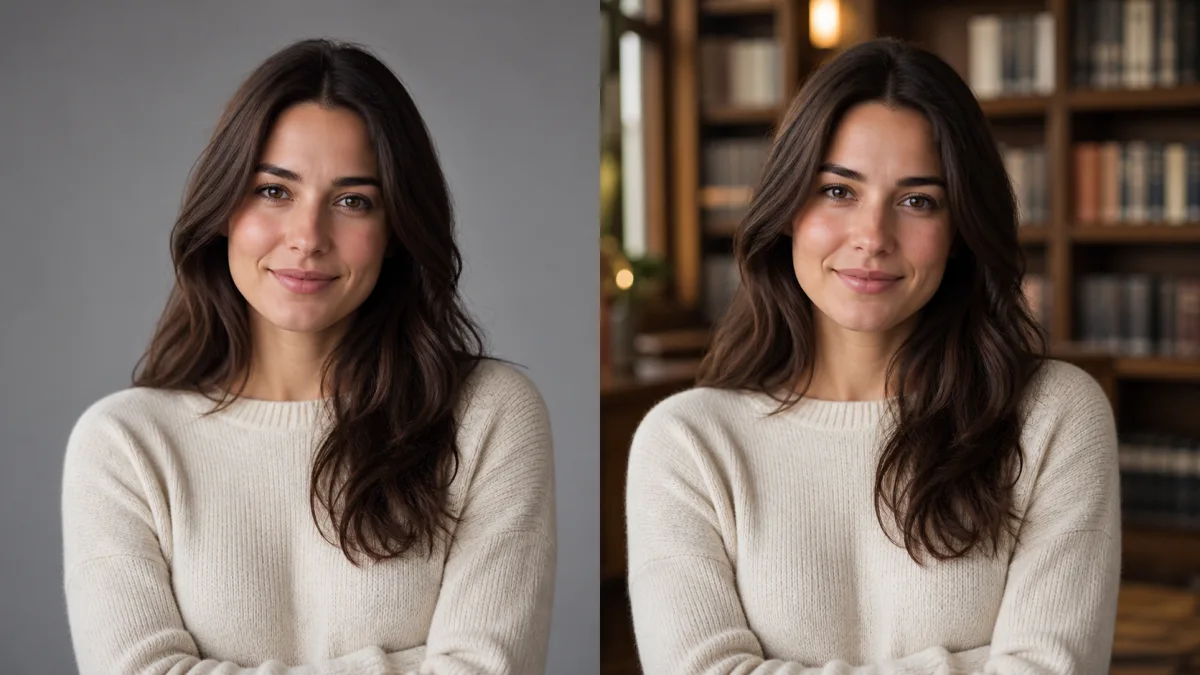
To change a photo background with AI without changing the subject, treat the job as a constrained edit rather than a fresh generation. The practical answer to how to change photo background with AI without changing subject details is to tell the model exactly what must stay fixed—identity, pose, clothing, product shape, camera angle, and foreground lighting—then describe only the new environment. Start from a clean, high-resolution source and make one background change at a time. If a selection or mask is available, include a small amount of edge context around hair, fabric, or the product so the replacement can blend naturally. Finally, compare the edited image with the source at full size, because small changes are easy to miss in a thumbnail.
Separate the subject from the requested change
Before writing a prompt, make two short lists. The preserve list contains every visual fact that makes the subject correct. For a portrait, that may include facial structure, hairstyle, expression, pose, clothing, jewelry, and skin tone. For a product, include silhouette, proportions, material, label placement, logo, and viewing angle. The change list should contain only the new setting, background surface, time of day, or atmosphere.
This distinction prevents a common mistake: describing the desired final picture so broadly that the model believes it is allowed to redesign everything. An AI background changer without changing subject details needs a narrow assignment, not a new creative brief.
Prepare a source image with readable edges
AI editors make better decisions when the source clearly shows where the subject ends. Choose an image with adequate resolution, visible hair and clothing edges, and limited motion blur. Transparent objects, flyaway hair, glass, fur, and reflective packaging require more care because their edges contain part of the original environment.
Before editing, check:
- The face or product is large enough to inspect.
- Important limbs and corners are not cropped accidentally.
- The original shadow is visible if it should remain.
- No foreground object overlaps the subject in a confusing way.
- Logos and small accessories are readable at full resolution.
Do not sharpen a poor source aggressively before the edit. Artificial halos can become part of the new background boundary.
Write a preserve-first background prompt
Lead with preservation, describe the replacement, and finish with integration rules. Avoid style adjectives that could apply to the subject as well as the setting. For example, asking for a “dreamy watercolor scene” may repaint the person. Instead, apply the visual direction specifically to the background.
Preserve the subject exactly as shown: the same face, expression, hairstyle,
pose, clothing, body proportions, and camera angle. Replace only the background
with a quiet modern studio, warm gray wall, soft floor transition, and subtle
depth. Match the existing light direction and keep natural contact shadows.
Do not alter the subject, accessories, skin texture, or clothing details.
For a product, replace the identity language with exact product constraints. Name the shape, label area, cap, material, and front-facing orientation rather than saying only “keep the product the same.”
Keep the edit local when possible
If the editor offers a mask, selection, brush, or background-only control, use it. Keep protected interior areas outside the editable region. Around hair or a soft textile edge, allow a narrow transition zone so the new environment can appear through translucent strands and blend with antialiasing. Around a hard product edge, keep the editable boundary tighter.
When no local editing control is available, the prompt must do more work. Use phrases such as “replace only the environment behind the subject” and “all foreground subject pixels remain unchanged.” Generate a small set of candidates and reject any result that improves the background by quietly redesigning the subject.
Match light, depth, and contact with the new scene
A convincing background replacement is not just a clean cutout. The new scene must share the source image’s perspective and light. If the face is lit from camera left, a bright window on camera right will make the composite feel false. If the source was photographed at eye level, a strongly top-down room will create an impossible horizon.
Describe the dominant light direction, approximate softness, camera height, and depth of field. Preserve the original contact shadow when it remains physically plausible. Otherwise ask for a restrained replacement shadow that connects the feet or product base to the new surface without changing the subject itself.
Why background edits unexpectedly change the subject
Subject drift usually comes from an overly broad prompt, a low-detail source, or conflicting style instructions. It also happens when the new setting demands lighting or perspective that cannot coexist with the original subject. A request for a noon beach behind a portrait lit by a dark indoor lamp forces the model to choose between consistency and preservation.
Fix the problem by reducing the transformation. Choose a background compatible with the existing view, state the protected details explicitly, and remove instructions about wardrobe, beauty, mood, or rendering style. If only one edge fails, correct that local area if such editing is available instead of regenerating the entire picture.
Review the boundaries at full size
Compare source and result side by side rather than relying on overall resemblance. Inspect hairlines, ears, fingers, sleeves, transparent glasses, straps, product corners, printed labels, and the outline where the subject meets the floor. Look for copied fragments of the old background caught between fingers or inside loose hair.
Then zoom out. Check whether the horizon crosses the subject at a believable height, whether blur increases naturally with distance, and whether background contrast steals attention from the main subject. A technically clean edge can still look pasted on when the new environment is too sharp or saturated.
Use a repeatable background-edit checklist
Before accepting the image, confirm:
- The face, product, pose, and proportions match the source.
- Clothing, accessories, labels, and logos did not drift.
- Hair and transparent edges do not show halos.
- Light direction and color temperature are believable.
- Contact shadows connect the subject to the scene.
- Perspective and camera height agree.
- No old background fragments remain.
- The image still works at its final crop and size.
Create the background edit from a controlled starting point
Browse the AI image examples to identify backgrounds with suitable lighting and composition before you write. Then open the AI image generator to plan the preserve/change instruction. When your source and prompt are ready, use the Create workspace to make a focused background variation, compare it with the original, and continue only with the version that keeps the subject genuinely intact.
Related guides
Browse all ai reference editing guidesAn AI Inpainting Mask Guide for Clean Local Edits
Plan cleaner local AI edits by choosing mask boundaries, context margins, feathering, protected regions, staged passes, and full-resolution checks.
How to Write Better Negative Prompts for Realistic AI Images
Build concise negative prompts from visible risks while keeping positive direction clear, specific, compatible, and useful for realistic image creation.
How to Fix Unrealistic Reflections in AI Images
Correct mirrors, glass, water, metal, and glossy surfaces by tracing reflected geometry, viewpoint, light, roughness, occlusion, and material behavior.
Last updated .