How to Add Natural Film Grain to AI Images
Add restrained film grain that supports tone and texture by matching grain size, contrast, color, image scale, shadows, highlights, and final output.
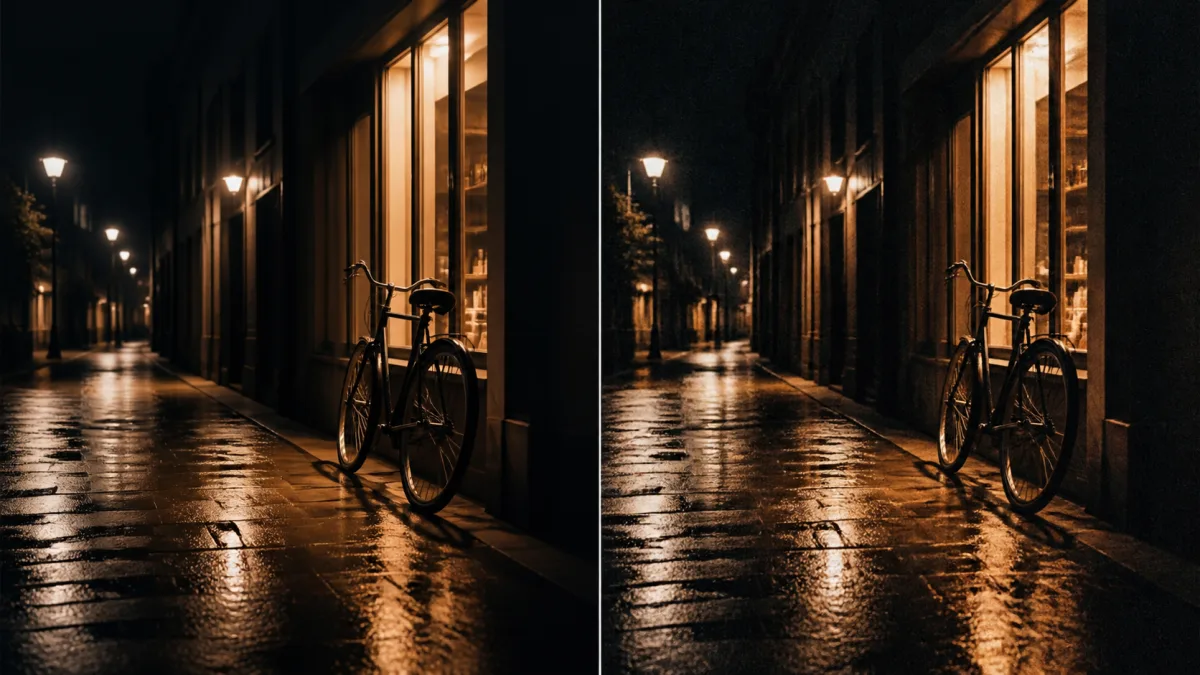
To add natural film grain to AI images, treat grain as the final texture of an already coherent image, not as a shortcut for hiding structural errors. First correct anatomy, repeated objects, broken reflections, and inconsistent lighting. Then choose grain size and contrast that fit the output dimensions and visual direction. Preserve the subject, composition, colors, and detail hierarchy; apply fine, irregular texture across the frame without turning skin, sky, and shadows into identical noise. Grain should remain subtle at normal viewing size, survive export without clumping, and feel integrated with sharpness and color. If a local or strength control is available, use it conservatively and check both highlight and shadow areas.
Decide what grain should contribute
Film grain can soften an overly clinical digital surface, unify generated and edited regions, support a photographic period, or reduce the impression of perfectly smooth gradients. It cannot make impossible geometry believable. Define the purpose before adjusting the image.
Possible goals include:
- A restrained editorial finish
- A coarser documentary or high-speed-film character
- Gentle texture that unifies a composite
- Softer transitions in broad skies or walls
- A period-inspired look paired with appropriate color and contrast
Choose one. Combining heavy grain, scratches, dust, light leaks, blur, and faded color turns a controlled finish into a novelty filter.
Finish structural edits before adding grain
Inspect hands, faces, type, object edges, reflections, and perspective first. Grain makes detailed review harder and may conceal seams temporarily. Keep a clean master file so you can return to the corrected image without processing artifacts.
If the image contains a local AI edit, match color, sharpness, and lighting at the boundary before applying grain. A consistent final texture can unify subtle differences, but it should not be responsible for hiding an obvious patch.
Match grain size to output size
Grain that looks refined on a large master can become chunky after a social platform downsizes and compresses the image. Conversely, extremely fine grain may disappear in export. Judge it at the actual pixel dimensions and common display size.
For a large print-oriented image, fine texture can remain visible without dominating. For a small web image, reduce intensity and avoid high-contrast specks. Do not use the same settings blindly across portrait, landscape, and thumbnail versions.
Ask for restrained, irregular texture
When using an AI edit to introduce the finish, protect the visual content and state that grain is a surface treatment only.
Preserve the complete image, subject, facial features, composition, lighting,
colors, sharpness hierarchy, and all object details. Add only subtle natural
film grain with fine irregular texture, low contrast, and gentle variation
across the frame. Keep highlights clean, shadows detailed, skin texture
believable, and edges intact. Do not add scratches, dust, light leaks, blur,
vignetting, color shifts, or a distressed vintage effect.
If you want a stronger analog character, change one variable at a time. Increase grain size or contrast, not every artifact simultaneously.
Let grain respond to tone without becoming a mask
Natural-looking grain remains visible differently across highlights, midtones, and shadows. Heavy dark specks in a clean sky can look like digital noise. Uniform texture stamped at one opacity across every surface can look like an overlay.
Inspect smooth gradients, skin, dark clothing, and bright walls separately. Preserve shadow detail and avoid color noise that creates green or magenta blotches. If selective controls are available, refine the most distracting tonal regions while keeping the frame cohesive.
Balance grain with sharpness
Excessive sharpening plus grain produces crunchy edges and makes hair, eyelashes, foliage, and typography difficult to read. Heavy denoising followed by grain creates another artificial combination: waxy shapes under a decorative texture.
Use moderate local contrast and preserve the original focus behavior. The focal subject can remain crisp, but edges should not have white halos. Add grain after resizing when possible, or at least review the resized version and adjust the master accordingly.
Why film grain looks fake or dirty
Common causes are excessive strength, grain that is too large, identical texture everywhere, colored speckles in shadows, or added scratches that do not match the image’s visual period. Another failure is using grain to make a glossy AI portrait feel real while leaving plastic highlights and uniform skin untouched.
Fix the underlying surface first, then reduce grain until it is barely noticeable at normal size. Remove unrelated vintage effects. If compression turns fine texture into blocks, export at a suitable quality and inspect the final delivery file rather than only the editing preview.
Film-grain checklist
Before exporting, confirm:
- Anatomy, geometry, lighting, and reflections were corrected first.
- Grain serves a stated visual purpose.
- Size and contrast suit the final dimensions.
- Texture is irregular but not distracting.
- Skin, sky, gradients, and shadows remain readable.
- Edges have no sharpening halos.
- No unwanted scratches, dust, leaks, or color shifts appeared.
- The compressed final file still looks clean at normal size.
Apply texture to a finished visual
Compare photographic finishes in the AI image showcases, then use the AI image generator to define a grain-only change that protects the image. Open the Create workspace after the structural edit is complete and make one restrained finishing pass. Subtle film grain for digital images works best when it quietly unifies the result rather than announcing itself as an effect.
Related guides
Browse all ai reference editing guidesAn AI Inpainting Mask Guide for Clean Local Edits
Plan cleaner local AI edits by choosing mask boundaries, context margins, feathering, protected regions, staged passes, and full-resolution checks.
How to Write Better Negative Prompts for Realistic AI Images
Build concise negative prompts from visible risks while keeping positive direction clear, specific, compatible, and useful for realistic image creation.
How to Fix Unrealistic Reflections in AI Images
Correct mirrors, glass, water, metal, and glossy surfaces by tracing reflected geometry, viewpoint, light, roughness, occlusion, and material behavior.
Last updated .