How to Write an AI Image Prompt for a YouTube Thumbnail
Build YouTube thumbnail prompts around one clear story, a bold subject, clean contrast, crop-safe composition, and space for accurate added typography.
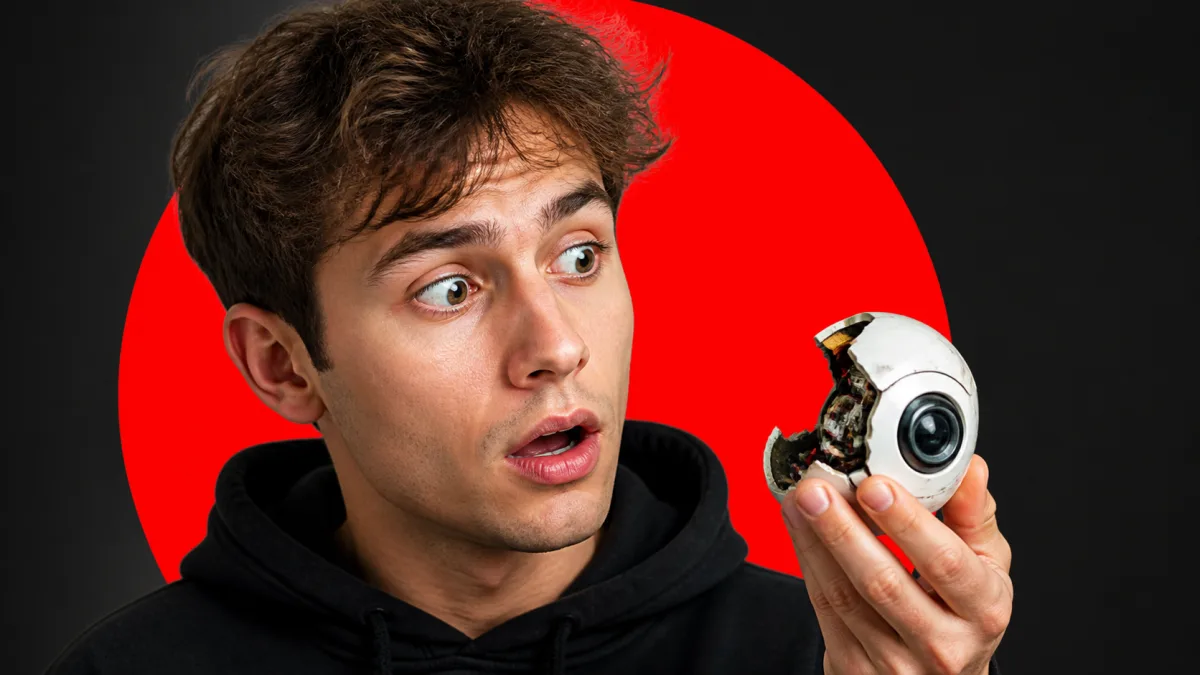
A strong AI image prompt for a YouTube thumbnail describes one instantly readable visual story: a primary subject, a meaningful object or result, clear emotional tone, and a simple background. Compose horizontally, keep faces and important props away from the edges, and reserve uncluttered space only if you plan to add a short title later. Generate the visual without words, channel marks, or interface elements; add accurate typography and branding in a design editor. Because viewers often encounter thumbnails at small sizes, judge silhouette and contrast before fine detail. The finished image should honestly represent the video rather than promise an outcome the content does not deliver.
Use the copy-ready AI image prompt for YouTube thumbnail artwork below, then tailor its YouTube thumbnail background prompt to the video's real setting and promise.
Write the thumbnail promise first
Summarize the video's payoff in a short sentence. Then ask what single frame could communicate that payoff without reading the title. A tutorial about repairing a dark portrait might show a creator beside one clearly lit result, not five tools, a camera, arrows, charts, and a generic lightbulb.
The thumbnail and title should complement each other. If the title already explains the method, the image can show the tension or result. Avoid repeating the full title inside the artwork, especially during generation.
Choose one focal hierarchy
Assign roles before styling:
- Primary subject: the face, product, object, or result seen first
- Secondary cue: one item that explains context or contrast
- Background: a simple field that separates both subjects
- Optional type zone: calm space for a few words added later
Use scale and contrast to make the hierarchy obvious. Two equally large faces, several bright icons, and multiple unrelated props compete instead of telling a story.
Direct expressions and gestures precisely
If a person is needed, describe an appropriate, believable expression and where the eyes look. "Focused creator looking at the repaired photo" is more useful than "shocked viral face." State the crop, such as head-and-shoulders or waist-up, and keep hands simple unless a gesture is essential.
Do not manufacture drama unrelated to the video. Honest curiosity, concern, satisfaction, or surprise can communicate emotion without turning the image into a misleading reaction.
Build separation at small size
Give the main subject a clean silhouette. Use a background that differs in value or hue, controlled edge light where plausible, and only a few large shapes. Fine textures and tiny props may disappear when the image is reduced.
Browse the AI image showcases for color and subject-separation ideas, then zoom the candidate down to its likely feed size. The strongest image at full screen is not always the clearest thumbnail.
Copy-ready thumbnail prompt
Create a text-free horizontal YouTube thumbnail image for a video about
[specific topic]. Communicate this honest promise: [video payoff]. Show one
primary subject, [subject and expression or action], large in the [left / right]
side of the frame. Add one secondary cue, [object or result], that explains the
topic immediately. Use a simple [color or environment] background, strong but
believable subject separation, and a clear silhouette at small size. Reserve
the opposite side as low-detail space for optional typography added later.
Keep faces, hands, and essential objects inside a central crop-safe area. No
words, letters, logos, platform interface, arrows, watermarks, clutter, or
claims not supported by the video.
Build the first composition in the AI image generator, then use Create to adjust only the focal subject, secondary cue, or type zone between versions.
Add typography after image generation
Use a design tool for channel type, episode wording, and any verified labels. This keeps spelling exact and makes the type responsive to the real image. Place text in the planned quiet zone, protect it from timestamp and interface overlays, and use a restrained number of words.
Platform display behavior and recommended dimensions can change. Check the current publishing guidance and preview the upload on relevant devices before release. Retain an editable source so wording can be corrected without regenerating the image.
Fix common thumbnail failures
If every element shouts, remove props until one subject dominates. If the scene feels generic, replace "content creator setup" with the exact object and action from the video. If a face looks exaggerated or inconsistent, use a simpler expression, reduce the crop, or use an approved reference image where appropriate.
Generated text, distorted logos, and fake interface screenshots should be removed, not repaired with more prompt adjectives. If the type zone remains busy, specify a flat wall, soft gradient, or defocused environment and prohibit high-contrast edges there. If a crop feels empty, enlarge one meaningful element rather than adding decoration.
Prepare a small set of purposeful options
Vary one strategic choice per option: subject on left versus right, result-first versus creator-first, or warm versus cool background. Do not create many nearly identical versions with arbitrary expressions. Name the intended use of each candidate and keep the video promise constant.
Check whether each option remains recognizable in a compact grid. Also compare it with recent channel uploads so the episode is distinct without abandoning the channel's visual system.
Thumbnail delivery checklist
- One subject or result is clearly dominant at small size.
- The visual promise matches the actual video.
- Face, hands, props, and edges hold up at full resolution.
- Optional type has quiet space and was added outside the generator.
- No essential detail sits under likely platform overlays or outer crops.
- Colors separate the subject without crushing detail or producing halos.
- No accidental text, fake UI, trademark misuse, or watermark remains.
- Current upload specifications and device previews have been checked.
Choose one published or upcoming video and reduce its payoff to one frame. Generate that honest visual in Create, add exact typography separately, and review the result both full size and as a small feed thumbnail.
Related guides
Browse all ai creative assets guidesHow to Write a 16:9 AI Image Prompt for a Website Hero
Create wide website hero images with intentional negative space, crop-safe subjects, readable contrast, responsive flexibility, and clear brand direction.
AI Image Prompts for Blog Featured Images That Fit the Story
Write blog featured image prompts that communicate the article idea, reserve useful crop space, match your brand, and stay readable across placements.
How to Write AI Image Prompts You Can Actually Refine
Build AI image prompts in clear layers, compare useful variations, and revise one visual decision at a time instead of starting over after every result.
Last updated .